 DayTone
To change the alarm sound on iPhone, open the Clock app, tap Alarms, tap the alarm you want to change, then tap Sound and pick a ringtone, a vibration or a song. Tap Save. Each alarm has its own sound, so repeat this for every alarm you use.
That covers most people. The rest of this guide explains how to use a song as your alarm, how to add a custom tone, why the sleep schedule alarm works differently, and what to do when the alarm only vibrates.
Change the sound of an existing alarm
- Open Clock and tap Alarms at the bottom.
- Tap the alarm's time. (You can also tap Edit first, then tap the alarm.)
- Tap Sound.
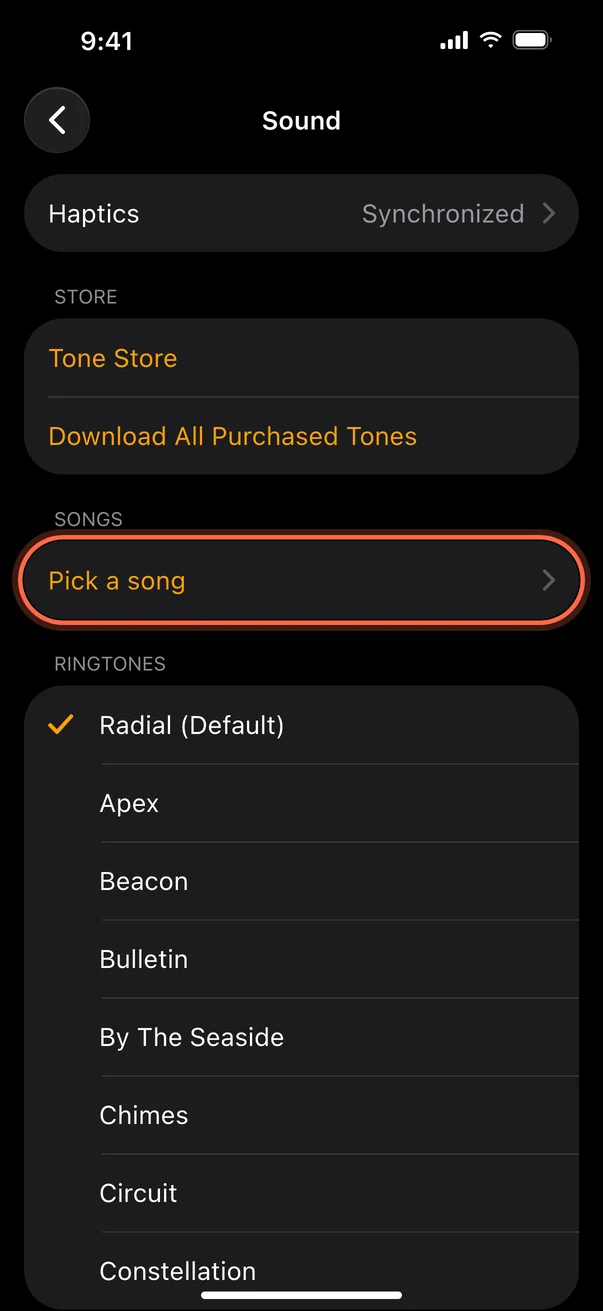
- Choose a tone under Ringtones, or tap Pick a song under Songs. Tap a tone to hear it.
- Go back and tap Save.
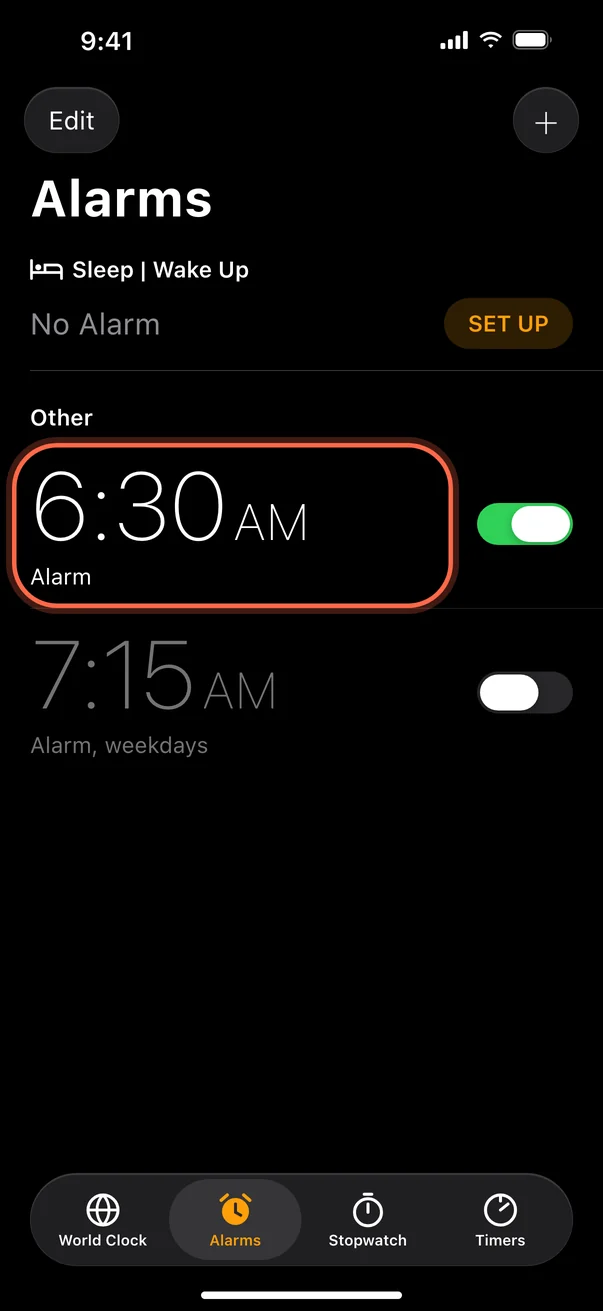
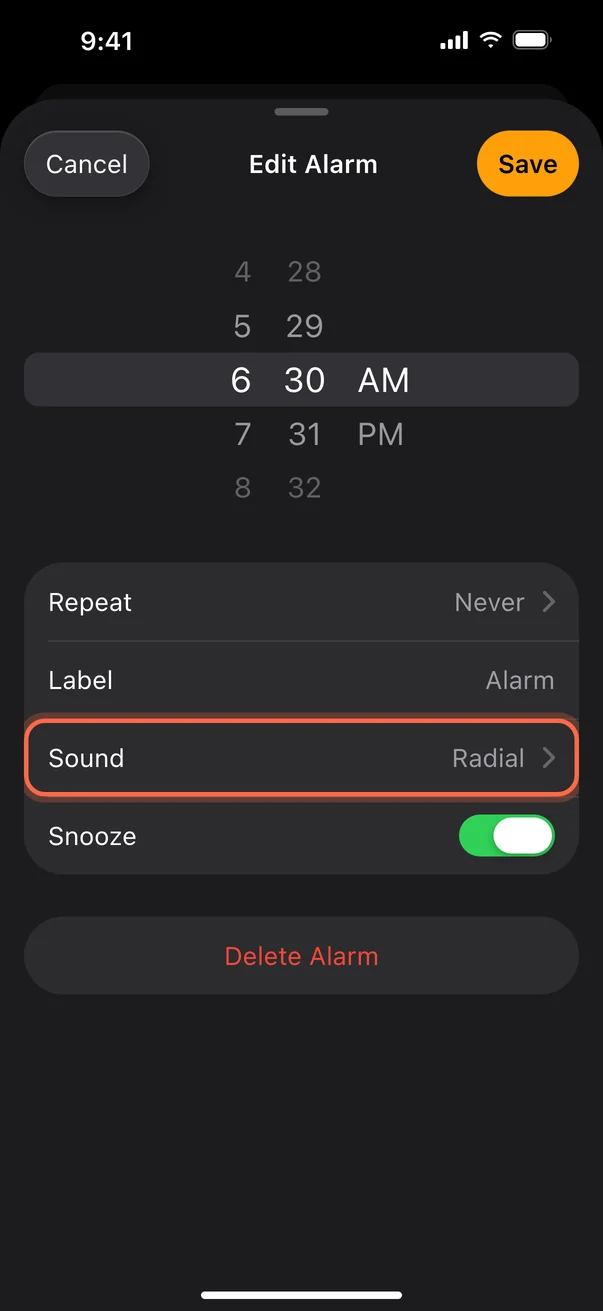
To set the sound for a new alarm, tap + on the Alarms screen, set the time, then follow steps 3 to 5. Apple's own steps are in How to set and change alarms on your iPhone.
Use a song as your iPhone alarm
Under Sound, tap Pick a song and choose any song from your Music library. Not sure which song? See 40 wake-up songs by mood. The song has to be in the Music app on the phone: bought from iTunes, synced from a computer, or added to your library from Apple Music. Songs from Spotify, YouTube Music and other streaming apps don't show up, because the Clock app can only read your Music library.
A song you love usually works for a while. The trouble is that after a few weeks your brain learns it, and you start sleeping through it or hitting snooze on autopilot. Rotating the song every week or two helps.
Add a custom alarm tone
You can also use your own sound as a tone:
- Buy one. In Settings, tap Sounds & Haptics, then Ringtone, then Tone Store.
- Make one. In GarageBand on the iPhone, record or import a clip, then share the project as a ringtone. Ringtones can be up to 30 seconds long. Once it's saved, it appears in the alarm's Sound list with the built-in tones.
Change the wake-up alarm in your sleep schedule
If your alarm sits under Sleep | Wake Up at the top of the Alarms screen, it belongs to the sleep schedule in the Health app, and it has its own settings:
- In Clock, tap Alarms, then tap Change next to the wake-up alarm.
- Scroll to Alarm Options and tap Sounds & Haptics to choose a tone or vibration.
That changes the next alarm only. To change it every day, edit the schedule in the Health app under Sleep. The sleep schedule alarm can't play a song. If you want music, turn it off and set a regular alarm in Clock instead. Apple explains this in Change your wake up alarm in Clock on iPhone.
Make the alarm louder
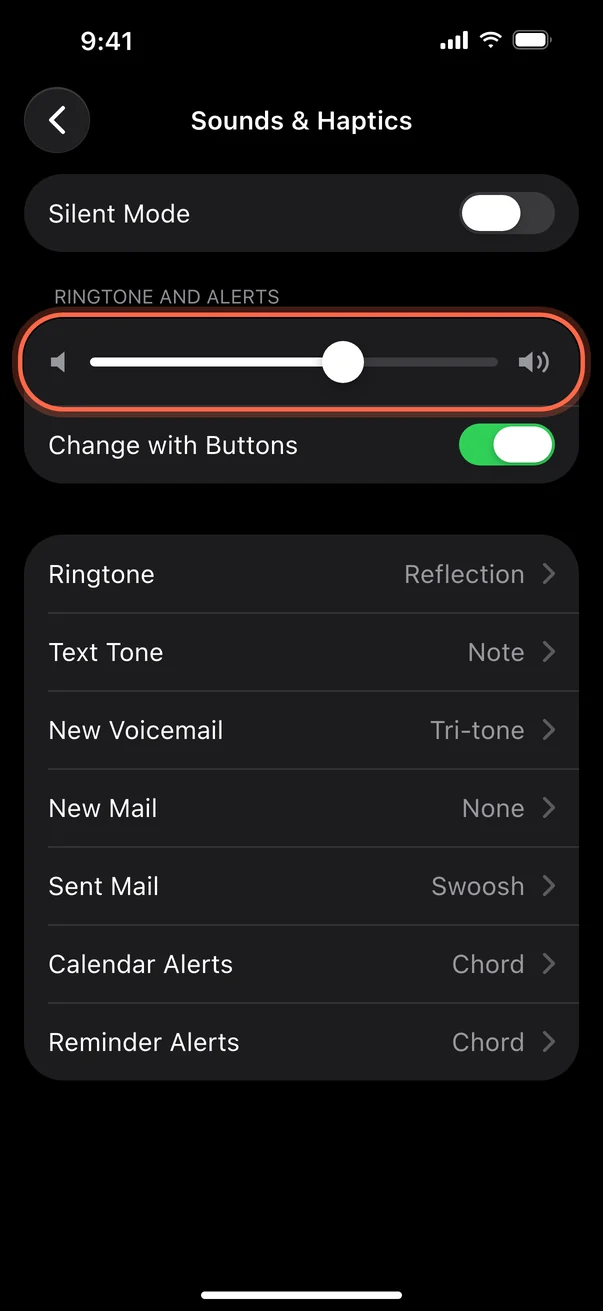
Since iOS 27, alarms can have a volume of their own. Open Settings, tap Sounds & Haptics, and under Alarms and Timers turn off Match Ringtone Volume. Then drag the slider that appears to the right. If you leave that switch on, or your iPhone runs iOS 26 or earlier, the alarm plays at your ringtone volume: drag the slider under Ringtone and Alerts instead. Your media volume never changes it. The sleep schedule's wake-up alarm keeps its own volume, set in its Alarm Options. Alarms set in the Clock app still ring when the phone is in Silent mode.
If your alarm only vibrates
- Check the sound isn't set to None. Open the alarm, tap Sound, and pick a tone.
- Check the alarm volume isn't all the way down (on iOS 26 or earlier, the ringtone and alerts volume).
- If the alarm is a song, make sure the song is still on the phone. A song you removed from your library can't play.
- In StandBy, alarm haptics are off, so the sound matters even more there.
- If it doesn't ring at all, go through why an iPhone alarm doesn't go off.
A different kind of alarm sound
Every option above has the same limit: the sound is the same every morning, and familiar sounds get easier to sleep through. Since iOS 26, other apps can ring as real alarms, through Silent mode and Focus, just like the Clock app.
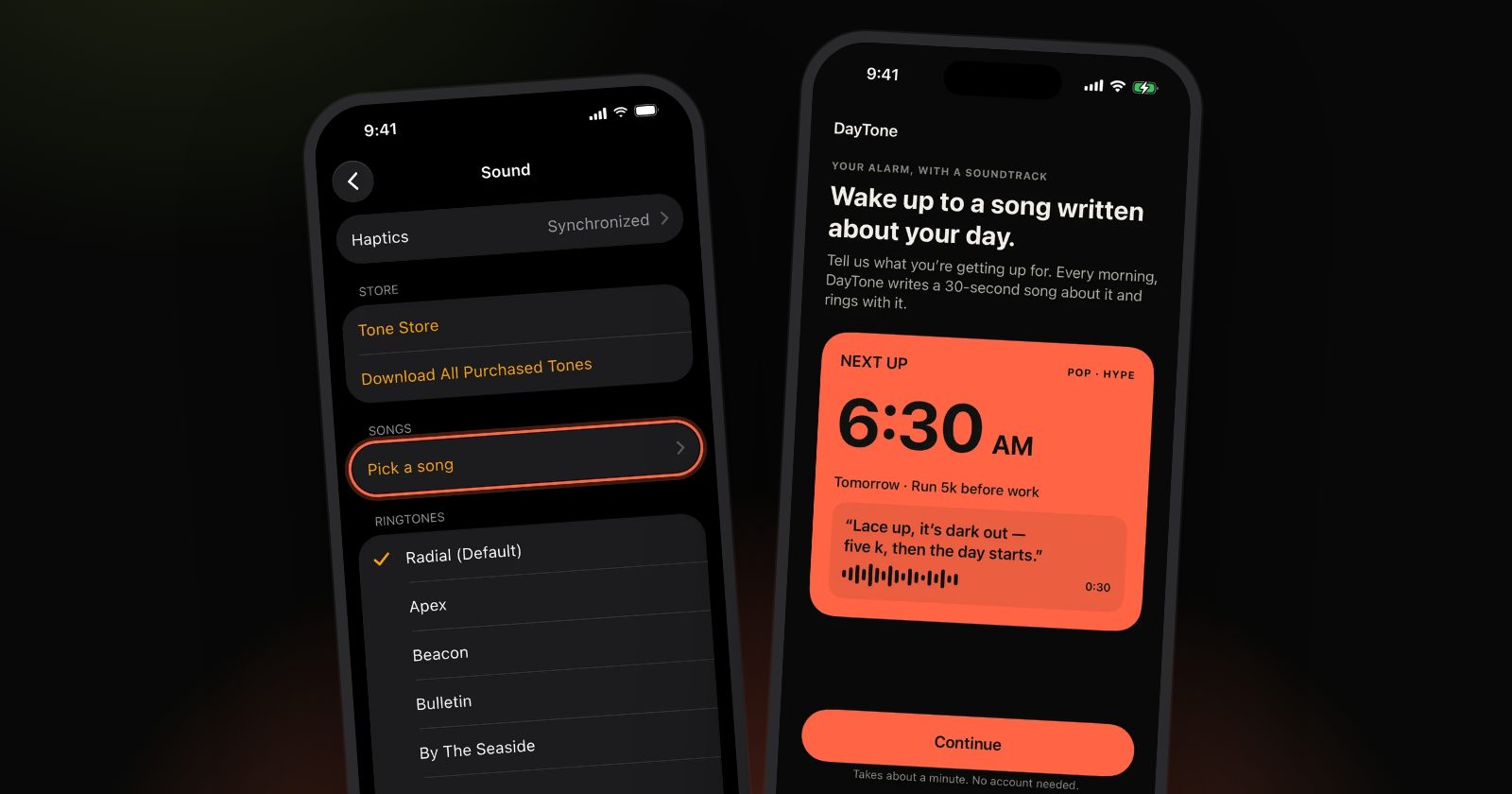
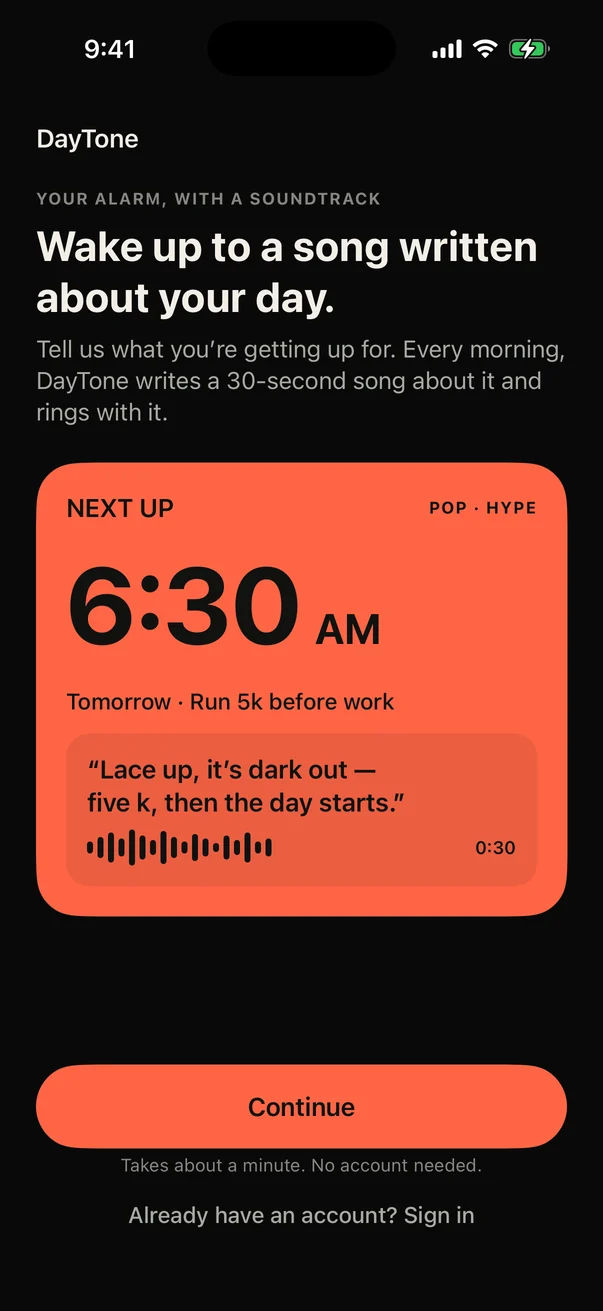
DayTone is one of them. It writes a short, original AI-made song for each alarm, built around the goals you set, so the alarm is never one your brain has learned to tune out. You pick the genre and a personality, from gentle to drill sergeant, and a backup sound is stored on the phone in case the song isn't ready. It's an alternative to the Clock app's alarms, not a setting inside them.
Quick answers
Can I use a Spotify song as my iPhone alarm? Not in the Clock app. It only plays songs in your Music library.
Can each alarm have a different sound? Yes. The sound is set per alarm.
Why doesn't my song appear under Pick a song? It isn't in your Music library on this phone. Add it to the library, or download it, and try again.
Does the alarm ring in Silent mode? Yes. Alarms set in Clock ring even when Silent mode is on.